4 minute read · Free exercise
XLOOKUP vs VLOOKUP: Match Two Lists and Find Gaps
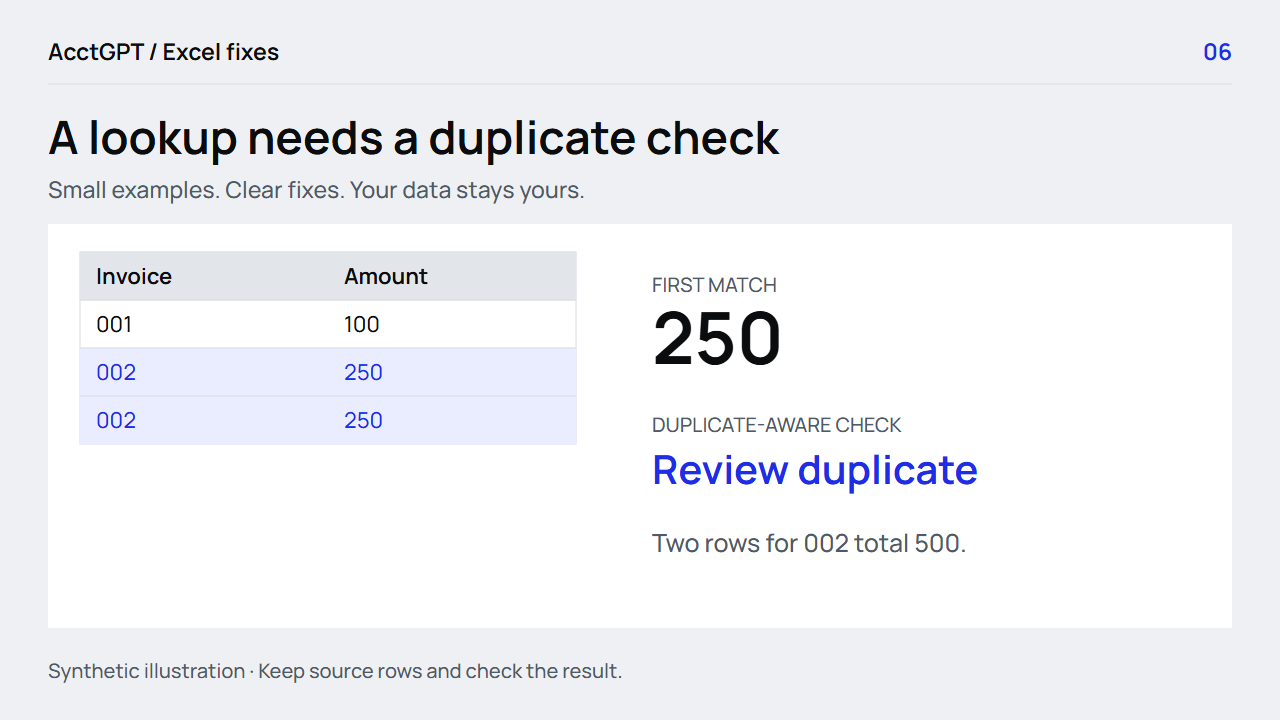
You look up invoice 002 and get 250. The source actually contains two rows for 002, each for 250. The returned value looks plausible, but it is only the first match.
Use an exact-match lookup, check the key's uniqueness and make missing results visible. XLOOKUP makes the retrieval convenient; it does not decide whether your records form a one-to-one match.
Count the key before retrieving its amount. If it repeats, return Review duplicate. If it is absent, return Missing. Compare amounts only after establishing the intended matching rule.
1. Decide what one row represents
Open ReportA, ReportB and Lookups in the practice workbook. A has IDs 001, 002 and 003. B has 001, 002 and 002.
The ID is text in both sheets, and this small example uses one currency. In a real export, decide whether the record is an invoice, an invoice line, a product-location balance or something else. Include company or other scope fields where necessary.
Also check the cell types. Text 00042 and a numeric 42 are not interchangeable identifiers simply because they look related. The text-code guide explains how to preserve the source values.
2. Use XLOOKUP for a clean exact match
For a clean, unique key in A2:
=XLOOKUP(A2,ReportB!$A$2:$A$4,
         ReportB!$B$2:$B$4,"Missing",0)
Read that as: find A2 in B's ID column, return the amount from the same row, use Missing when absent, and require an exact match. The final 0 makes that matching rule visible; exact match is also XLOOKUP's default.
For 001, the result is 100. For 003, it is Missing. For repeated 002, the normal search returns the first matching 250. It does not return both rows or their combined 500.
XLOOKUP separates the lookup and return ranges, so the return column can be on either side of the key. Microsoft's XLOOKUP reference documents its matching and search options.
3. Add the repeated-key guard
Use a helper count or wrap the retrieval:
=IF(COUNTIF(ReportB!$A$2:$A$4,A2)>1,
    "Review duplicate",
    XLOOKUP(A2,ReportB!$A$2:$A$4,
            ReportB!$B$2:$B$4,"Missing",0))
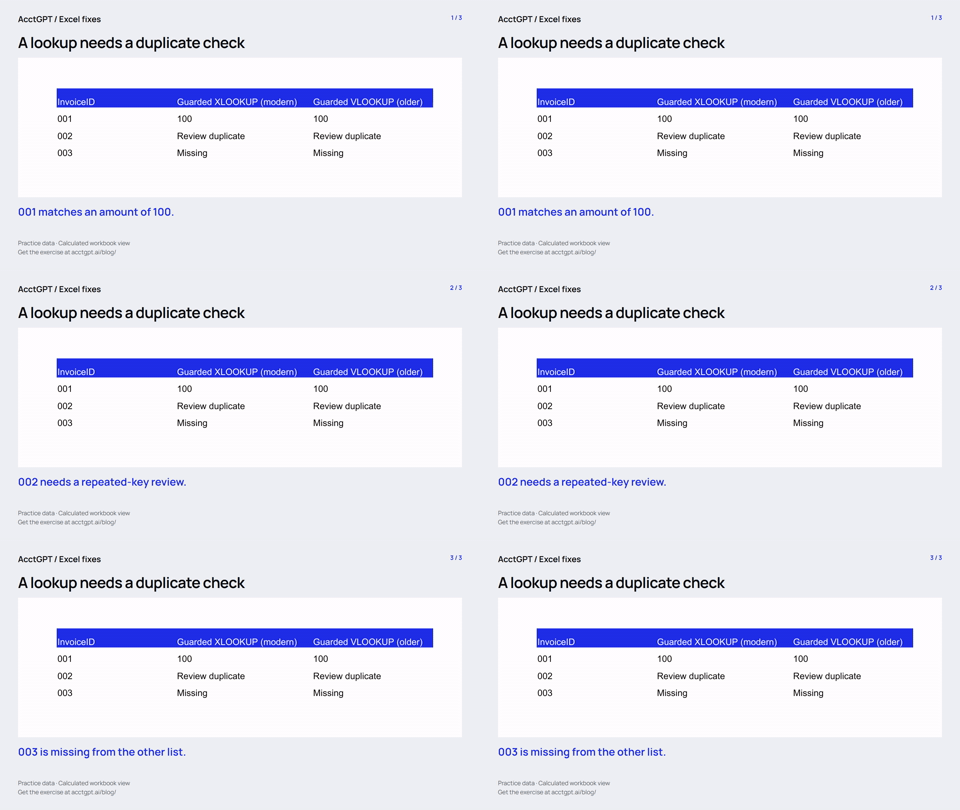
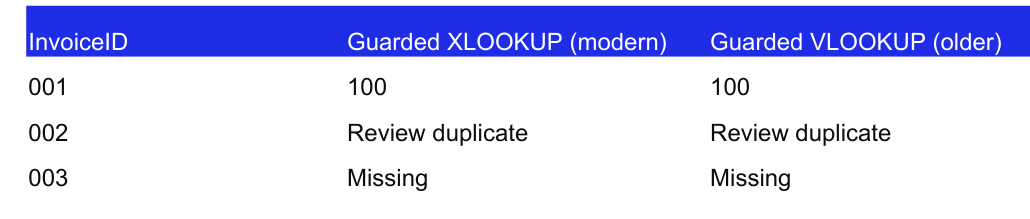
The three results are now:
| ID from A | Guarded result |
|---|---|
| 001 | 100 |
| 002 | Review duplicate |
| 003 | Missing |
Check uniqueness in A as well. A clean key in B does not fix several A rows that were supposed to represent one record.
If repeated lines are valid, define the aggregation. SUMIFS can total amounts for a key, but first ensure that summing is the right business comparison. Do not replace a repeated-key review with an arbitrary first or last row.
4. Use VLOOKUP when the workbook needs older Excel
XLOOKUP is available in Microsoft 365 and Excel 2021 or later. It is not available in Excel 2016 or 2019. For those files, a guarded exact-match VLOOKUP remains useful:
=IF(COUNTIF(ReportB!$A$2:$A$4,A2)>1,
    "Review duplicate",
    IFNA(VLOOKUP(A2,ReportB!$A$2:$B$4,2,FALSE),
         "Missing"))
Here, the key must be in the leftmost column of the selected range. The 2 asks for the second column, and FALSE requires an exact match. Do not omit FALSE for this task: the default approximate-match behavior serves a different purpose.
IFNA handles a missing match specifically. It leaves unrelated errors available for investigation. Microsoft's VLOOKUP guide describes its range and column-index rules.
5. Compare in both directions
Looking up A's IDs in B finds items missing from B. It does not find every B-only ID. Repeat the check from B to A, keeping the source rows and repeated-key flags.
Once keys have a valid one-to-one relationship, compare amounts and dates using your stated conventions. Keep currencies separate. Label a returned amount, a missing key and a reviewed match as different outcomes.
The workbook includes both modern and older-function examples. Test 001, 002 and 003 before replacing the sample ranges with your own. The duplicate guide explains why equal report totals can still hide these exceptions.
For a recurring financial-review workflow, inspect AcctGPT's sample workings. The $5 reporting-kit pilot remains a separate invitation-only offer; no purchase is required to use this article's practice workbook.
Watch the check
Read the animation
- 001 matches an amount of 100.
- 002 needs a repeated-key review.
- 003 is missing from the other list.
Calculated practice values, shown as a short visual explanation. No narration or recording of Excel menu actions.
Try it on a small example
Use the synthetic exercise first, check its expected answers, then adapt a copy for your own work.
Free files, no signup. Separate from the invitation-only $5 reporting kit.
Compatibility and example checks
XLOOKUP is available in Microsoft 365, Excel 2021 and later; it is not available in Excel 2016 or 2019. Provide a VLOOKUP(...,FALSE) alternative, with IFNA for missing results.
The workbook’s formulas and source-edit/PivotTable refresh were checked with LibreOffice 26.8. Native Microsoft Excel editing, menu actions and Power Query execution are not yet verified for this release. The guide links to Microsoft’s instructions. The animations illustrate calculated examples rather than recording Excel actions.