4 minute read · Free exercise
Combine Monthly Files in Excel with One Refresh
Each month, another export arrives. You copy its rows into a workbook, check the headers and hope nothing was pasted twice.
Power Query can make the repeatable part easier: combine compatible files from a dedicated folder, keep their source names and refresh when the next file arrives.
In Excel desktop for Windows: use Data → Get Data → From File → From Folder, choose Combine and Transform, review the schema and set types deliberately. Keep the source filename and check the counts before loading.
1. Put only the intended inputs in a folder
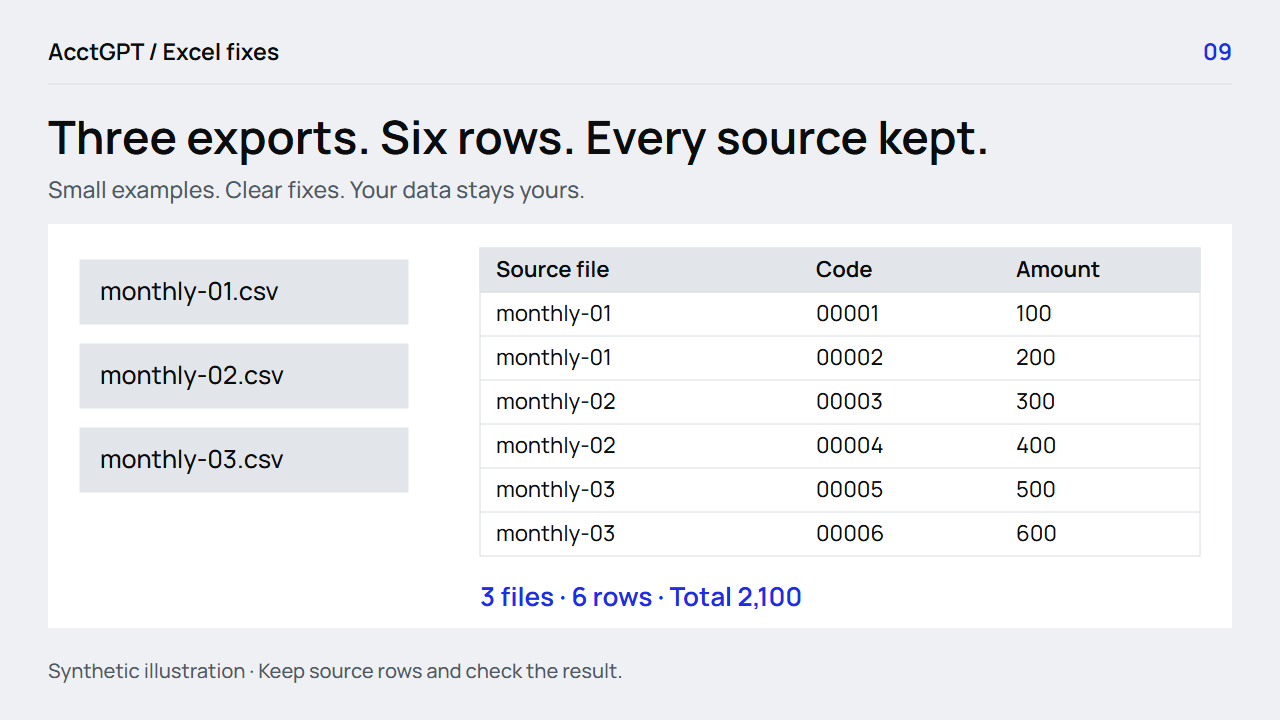
Download the file exercise and extract it. The initial-files folder contains three CSVs with the same four headers: InvoiceID, Date, Currency and Amount. Each file has two rows.
Keep the separately supplied fourth file outside that initial folder for now. Also keep the output workbook, unrelated exports and temporary files out of the input folder. A folder query can include subfolders, so choose the scope deliberately.
The first control is simple: three files, six rows and a USD total of 2,100. The amounts are 100, 200, 300, 400, 500 and 600. The invoice codes have leading zeros and should remain text.
2. Combine and transform
In Excel desktop for Windows:
- Choose Data → Get Data → From File → From Folder.
- Select the folder containing the three initial CSVs.
- Inspect the listed files and choose Combine → Combine and Transform Data.
- Confirm the delimiter, encoding and sample file.
- Review the combined result in Power Query Editor.
Keep the filename column, often called Source.Name. It gives each combined row a route back to the file it came from.
Microsoft's folder-combination guide describes the sample-file function and why consistent file structure matters. The same menu path is not promised for every Mac or web version; check connector availability on the platform you use.
3. Set the types before trusting the preview
Set InvoiceID to Text. If an automatically added type step already changed 00001 into 1, fix or remove that step and inspect the original CSV. A later display format cannot establish which original digits were lost.
Set Amount to the appropriate numeric type and parse Date using the intended locale. The exercise uses ISO-style dates to make the example clearer. Real exports need an explicit convention, especially for dates such as 05/11/2026.
For this exercise, the expected output columns are Source.Name, InvoiceID, Date, Currency and Amount. Check that the same columns appear in every input file. Renamed or missing columns should become a review problem rather than being silently treated as empty data.
4. Load only after the controls agree
Before Close & Load, confirm:
- Three intended source files are included.
- The preview has six data rows, with headers handled once per file.
- Every row has its source filename.
- Invoice codes retain their leading zeros.
- USD amounts total 2,100.
Inspect errors instead of selecting a skip-errors option just to get a clean-looking result. If files are deliberately excluded, keep an exclusion list explaining why.
The download includes an optional combine-monthly-files.pq recipe. It reads a named workbook cell called InputFolder and enforces the four expected source columns. You can use the normal Combine Files interface first; the recipe is there when you want to inspect and reuse the transformation logic.
To use it, create a single-cell named range InputFolder containing your local sample-folder path, start a blank query and paste the recipe into Advanced Editor. Review the source permissions for your own files, then load the table. The shared workbook itself has no preconfigured external connection.
5. Add the next file and prove the refresh
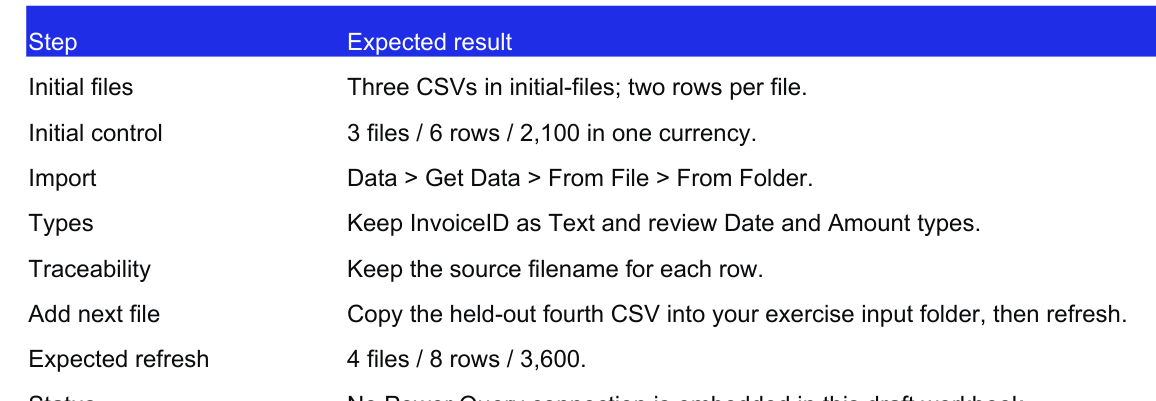
Copy monthly-04.csv from the next-file folder into your input folder. It adds amounts 700 and 800. Use Data → Refresh All, wait for the query to finish and inspect the result.
The expected controls become four files, eight rows and 3,600. The source-name column should show where the two new rows came from.
A refresh reruns the transformation. It does not decide whether a renamed column, duplicate export or revised business definition is acceptable. If the result is wrong, return to the file list, type steps and schema before editing the final table by hand.
Keep the original exports. Make changes in query steps or reviewed source corrections so the next refresh does not discard unexplained manual edits.
For a one-off CSV/TSV combination, AcctGPT's private list workspace is a simpler route: select or paste your data, review it locally and save the result. For a recurring Excel report, use this folder exercise and then build a PivotTable summary. Both routes benefit from the same row-count, source and total checks.
Watch the check
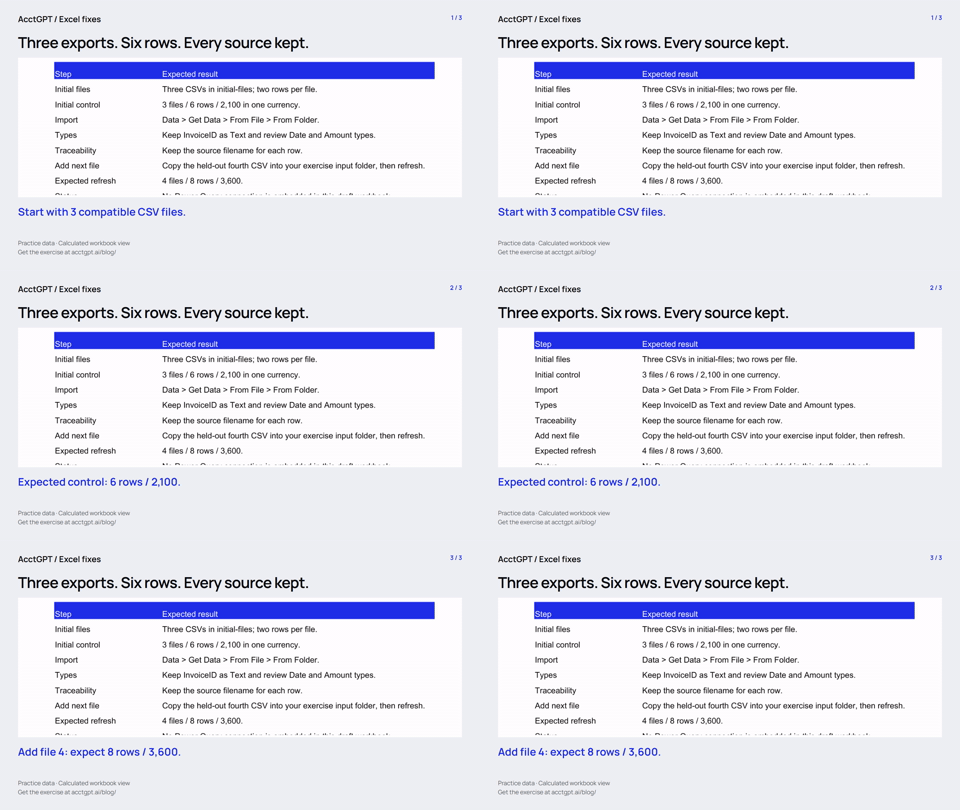
Read the animation
- Start with 3 compatible CSV files.
- Expected control: 6 rows / 2,100.
- Add file 4: expect 8 rows / 3,600.
Calculated practice values, shown as a short visual explanation. No narration or recording of Excel menu actions.
Try it on a small example
Use the synthetic exercise first, check its expected answers, then adapt a copy for your own work.
Free files, no signup. Separate from the invitation-only $5 reporting kit.
Compatibility and example checks
Use Excel desktop on Windows for the From Folder walkthrough, available in Excel 2016 and later. Mac and web connector support varies; do not promise identical steps without checking that connector on the actual version.
The workbook’s formulas and source-edit/PivotTable refresh were checked with LibreOffice 26.8. Native Microsoft Excel editing, menu actions and Power Query execution are not yet verified for this release. The guide links to Microsoft’s instructions. The animations illustrate calculated examples rather than recording Excel actions.