4 minute read · Free exercise
Combine Text in Excel Without Losing Your Codes
You want a label such as 00042 | 2026-11. Excel keeps turning the code into 42 or the date into a long number.
The fix is to preserve the code as text, format the date inside the formula and put the joined result in a helper column. Keep the original fields available for checking.
For a text code in A2 and a real date in B2: use =A2&" | "&TEXT(B2,"yyyy-mm"). The practice example returns 00042 | 2026-11.
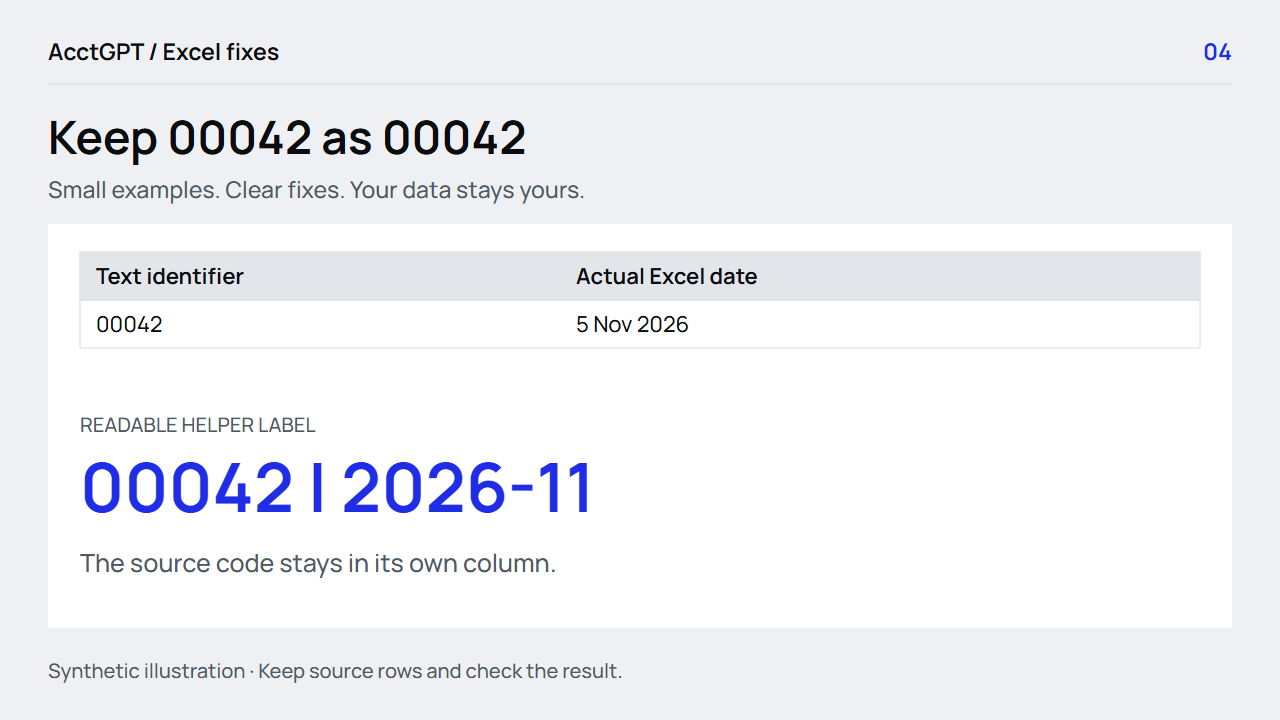
1. Preserve the code before combining it
An invoice code, ZIP code or stock code can contain only digits and still be text. If leading zeros matter, import that column as Text before Excel changes it.
For a CSV, use Data → From Text/CSV, choose Transform Data, and set the identifier column's type deliberately. If a Changed Type step already converted it to a number, remove or correct that step and check the original file. For a small pasted example, format the destination column as Text before pasting.
In the workbook's TextCodes sheet, A2 stores the text 00042. Clicking the cell lets you inspect the value independently of the helper label.
If the original code has already been reduced to 42, concatenation cannot tell you how many zeros were lost. Padding to five digits is appropriate only when an authoritative rule says the code must have five digits. Otherwise, return to the source.
2. Use & for a simple label
The ampersand joins values:
=A2&" | "&C2
If A2 is 00042 and C2 is Supplies, the result is 00042 | Supplies. The separator is inside quotation marks because it is literal text.
This formula creates another value; it does not overwrite the source columns. That is useful when someone needs both a readable display and the original fields for sorting, filtering or matching.
Microsoft's text-and-number guide covers joining values and controlling their displayed format.
3. Use TEXT to control the date label
Excel stores a real date as a serial value. Joining a date cell directly can expose that number rather than the date format you see in the grid.
Wrap the date in TEXT:
=A2&" | "&TEXT(B2,"yyyy-mm")
For 00042 and 5 November 2026, the result is 00042 | 2026-11. The pattern yyyy-mm makes the year and month explicit.
Confirm that B2 is a real date first. A string such as 05/11/2026 is ambiguous without a date convention: it can mean 5 November or May 11. Formatting ambiguous text is not a reliable way to resolve that question.
4. Use TEXTJOIN when blanks need a rule
For several fields, TEXTJOIN keeps the delimiter in one place:
=TEXTJOIN(" | ",TRUE,A2,C2,D2)
TRUE means ignore empty cells. If C2 is blank, the result joins the remaining values without adding an empty slot between two delimiters. That is often convenient for a display label.
It is not always right for a record key. If blank positions carry meaning, skipping a field can hide that distinction. Microsoft's TEXTJOIN reference documents the blank-handling argument and version support. TEXTJOIN requires Excel 2019 or later or Microsoft 365; the simple & example works in older supported desktop versions too.
For stray nonbreaking spaces from a known source, a reviewed helper can replace them before trimming:
=TRIM(SUBSTITUTE(A2,CHAR(160)," "))
Keep the original value and check the result. Spaces can be meaningful inside identifiers; normalization should follow an explicit rule.
5. Keep a display label separate from a unique key
Joining without a separator can create collisions:
| First field | Second field | Joined result |
|---|---|---|
| ab | c | abc |
| a | bc | abc |
A separator makes this example easier to distinguish, but a value containing the separator can create another ambiguity. A readable label is not automatically a unique record identifier.
For authoritative comparisons, keep fields separate and use a defined matching rule. COUNTIFS can check multiple original fields without turning them into a display string. The lookup guide also shows why uniqueness matters before retrieving an amount.
Download the workbook, open TextCodes, and check three things: A2 still contains 00042 as text, B2 remains a real date, and the helper returns 00042 | 2026-11. If your immediate task is combining exported lists, the private list workspace lets you prepare CSV/TSV data while retaining its text codes and source rows.
Watch the check
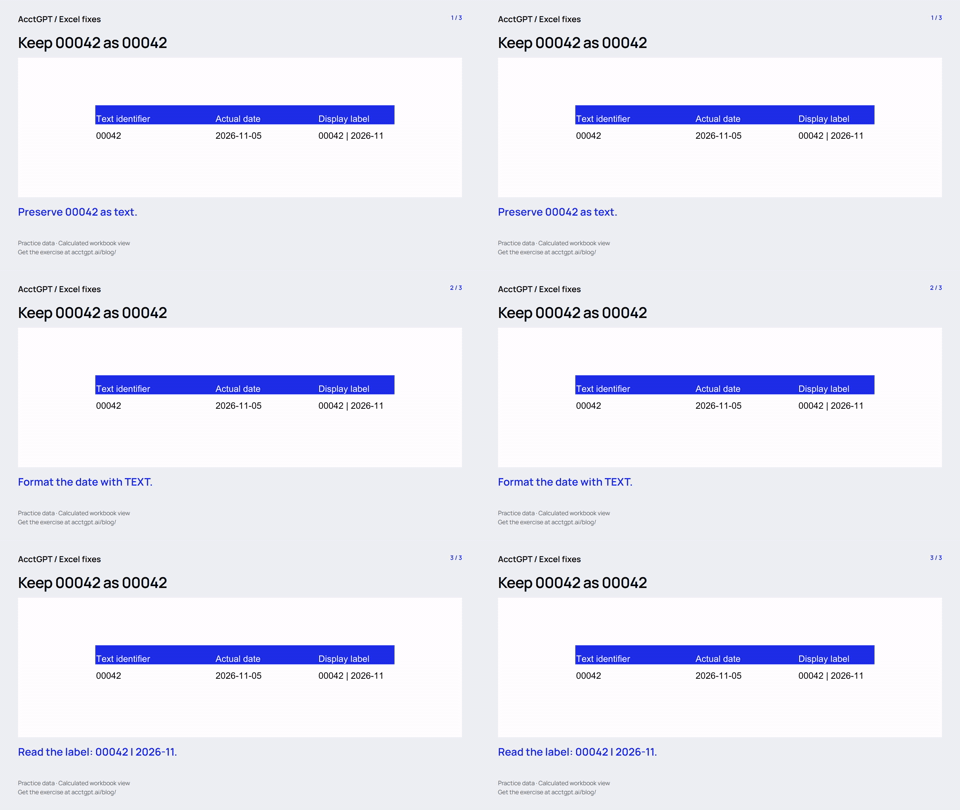
Read the animation
- Preserve 00042 as text.
- Format the date with TEXT.
- Read the label: 00042 | 2026-11.
Calculated practice values, shown as a short visual explanation. No narration or recording of Excel menu actions.

Try it on a small example
Use the synthetic exercise first, check its expected answers, then adapt a copy for your own work.
Free files, no signup. Separate from the invitation-only $5 reporting kit.
Compatibility and example checks
The & and TEXT examples work in Excel 2016 and later. TEXTJOIN needs Excel 2019 or later or Microsoft 365. Demonstrate text import rather than claiming formatting can recover lost digits.
The workbook’s formulas and source-edit/PivotTable refresh were checked with LibreOffice 26.8. Native Microsoft Excel editing, menu actions and Power Query execution are not yet verified for this release. The guide links to Microsoft’s instructions. The animations illustrate calculated examples rather than recording Excel actions.