3 minute read · Free exercise
Remove Duplicates in Excel Without Deleting Good Data
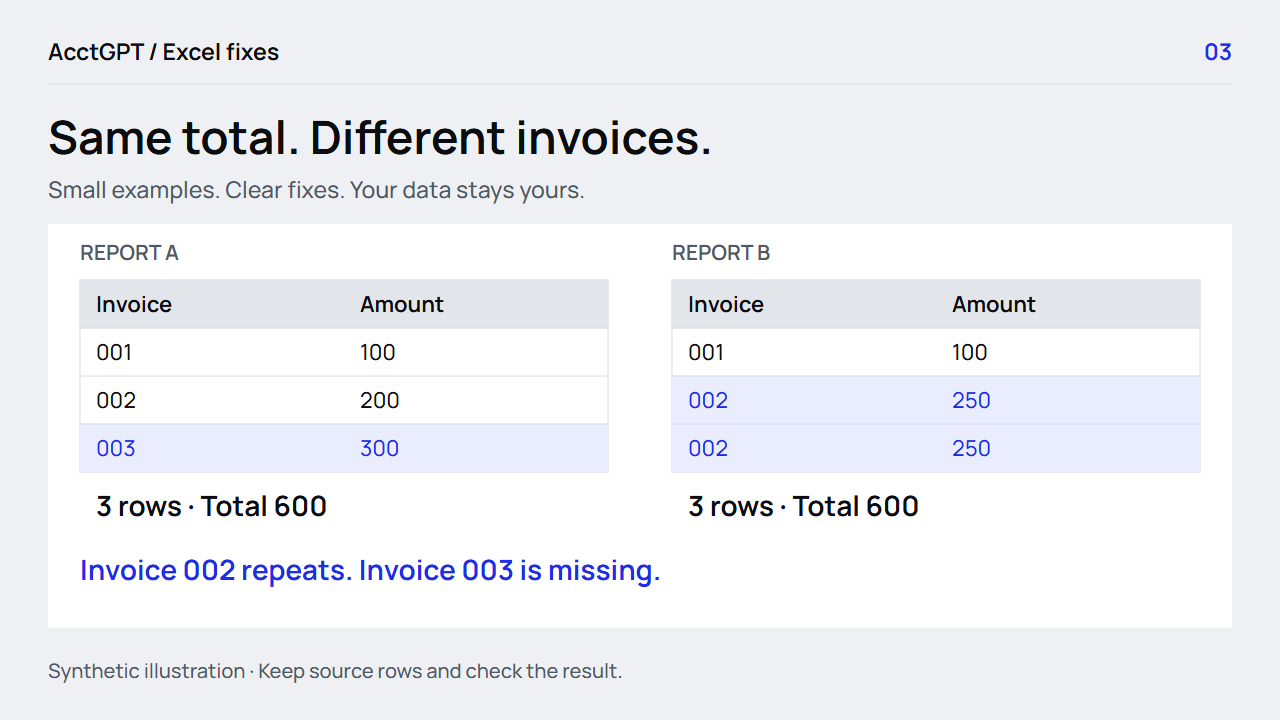
Both reports total 600. Both contain three rows. They still contain different invoices.
Before clicking Remove Duplicates, decide what makes one record unique. Then flag repeated values and review a copy. That small pause can prevent valid line items from disappearing.
For a repeated-ID check: put =COUNTIF($A$2:$A$4,A2)>1 beside the first row and fill down. Review the flagged rows before deleting anything.
1. See the problem a total can miss
The workbook's ReportA sheet contains:
| Invoice ID | Amount |
|---|---|
| 001 | 100 |
| 002 | 200 |
| 003 | 300 |
| Total | 600 |
The ReportB sheet contains:
| Invoice ID | Amount |
|---|---|
| 001 | 100 |
| 002 | 250 |
| 002 | 250 |
| Total | 600 |
Report B repeats 002 and omits 003. For ID 002, its two amounts total 500 rather than A's 200. That extra 300 offsets the missing 300 for ID 003. The net difference is zero.
A total and a row count are useful controls. They do not establish that the underlying records match.
2. Decide which columns define a duplicate
There are at least three different questions:
- Does this ID repeat? Check the ID column.
- Does this exact combination repeat? Check the fields defining that combination.
- Is this an unwanted duplicate? Review the record's meaning and source.
An invoice can have several valid line items. A product can appear in several warehouses. Two companies can use the same invoice number. Removing rows based on the ID alone can erase a legitimate second record.
For an invoice-line export, the intended key might be Company + Invoice ID + Line ID. Use the fields your source actually supplies; do not invent a line ID just to make the check pass.
3. Flag the rows before changing them
Open Duplicates in the free workbook. Column A contains the IDs from Report B. In the helper column, use:
=COUNTIF($A$2:$A$4,A2)>1
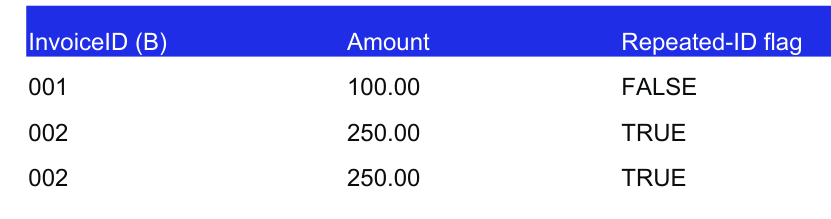
The two rows for 002 return TRUE. There is one repeated-ID group and two flagged rows. Those counts describe different things.
For a repeated ID-and-amount combination, use:
=COUNTIFS($A$2:$A$4,A2,$B$2:$B$4,B2)>1
For a quick visual check, select the relevant cells and use Home → Conditional Formatting → Highlight Cells Rules → Duplicate Values. Apply the check to the intended key, not an unrelated amount column. Two transactions having the same amount is usually weak evidence that they are duplicates.
4. Use Remove Duplicates on a reviewed copy
Keep the original file and copy the working table to a separate sheet. Then:
- Select the copied table, including its headers.
- Choose Data → Remove Duplicates.
- Confirm whether the selection has headers.
- Select only the columns that jointly define a duplicate record.
- Confirm the operation and inspect the reported counts.
Microsoft's duplicate-removal guide explains the difference between filtering unique values and removing rows. Removal changes the selected data. A filter only changes the view.
Excel normally keeps the first occurrence in the current order. That is a mechanical rule, not a judgment that the first row is the correct business record. If corrections or revisions exist, decide which source record should be retained before applying the command.
5. Prove what was retained and removed
Keep a small review log: source file, source row, key, decision and reason. After removal, compare:
- The original and retained row counts.
- The removed-row count against the reviewed log.
- Amount totals within each currency.
- Missing IDs and changes by key.
In our example, deleting one of B's 002 rows does not repair the report. It leaves 001/100 and 002/250, totalling 350; invoice 003 is still missing, and 002 still differs from Report A. Finding a repeated key is the beginning of the investigation.
Download the workbook and try the flags first. Then use the two-list lookup guide to find missing IDs and inspect changed amounts.
For a recurring financial-report comparison, inspect AcctGPT's sample workings. The separate $5 Report Tools Starter Kit is invitation-only; its current page explains the offline workflow and how to request an invitation.
Watch the check
Read the animation
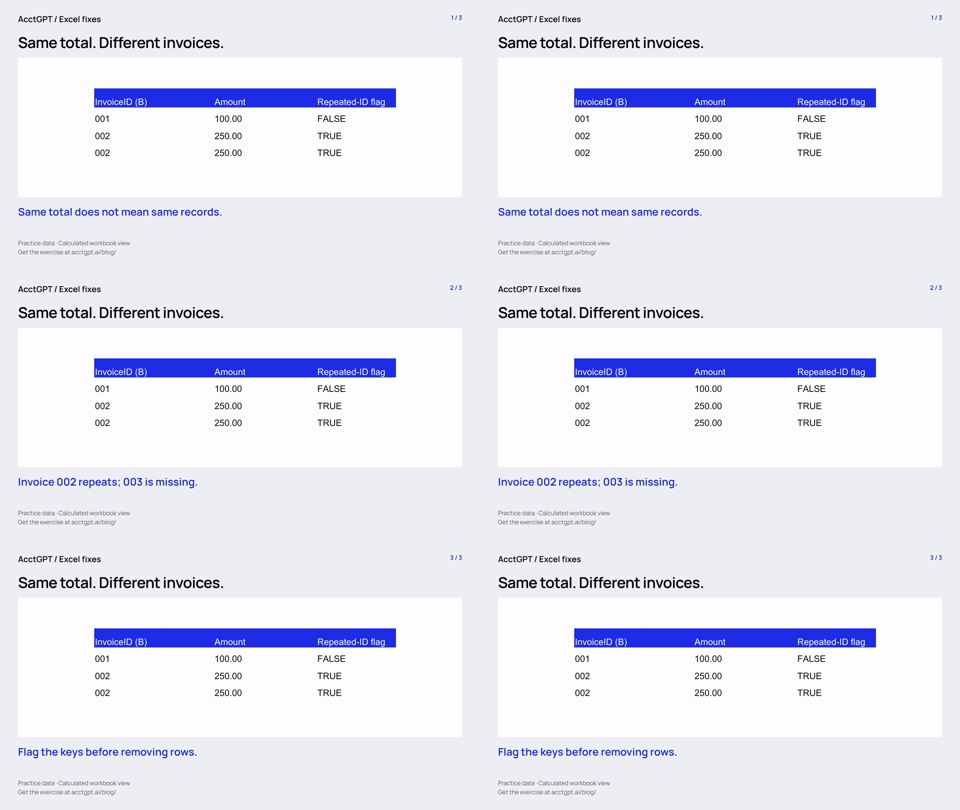
- Same total does not mean same records.
- Invoice 002 repeats; 003 is missing.
- Flag the keys before removing rows.
Calculated practice values, shown as a short visual explanation. No narration or recording of Excel menu actions.
Try it on a small example
Use the synthetic exercise first, check its expected answers, then adapt a copy for your own work.
Free files, no signup. Separate from the invitation-only $5 reporting kit.
Compatibility and example checks
COUNTIF, conditional formatting and Remove Duplicates are available in Excel 2016 and later. Screens and menu labels should be captured from the version used for the article.
The workbook’s formulas and source-edit/PivotTable refresh were checked with LibreOffice 26.8. Native Microsoft Excel editing, menu actions and Power Query execution are not yet verified for this release. The guide links to Microsoft’s instructions. The animations illustrate calculated examples rather than recording Excel actions.