4 minute read · Free exercise
Create an Excel Drop-Down List for Cleaner Entries
Your expense list contains Travel, travel expenses and Travl. A category summary treats those as different labels even though the person entering them meant one thing.
A drop-down gives people a short list of allowed choices. A separate helper check catches invalid values that were already present or arrived through a paste or import.
Store the choices once, name the range Categories, then use Data Validation → List with source =Categories. Add a Stop message for typed mistakes and a COUNTIF check for the values already in the sheet.
1. Write the allowed choices in one place
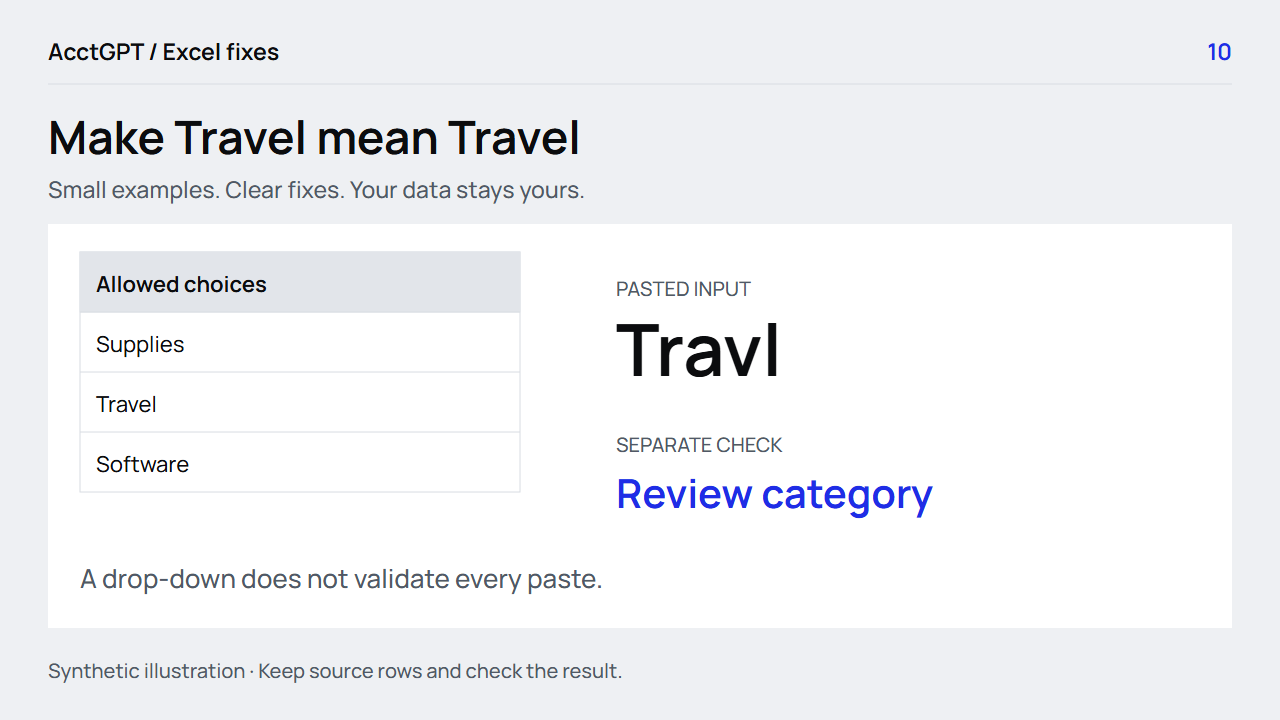
Open Categories in the practice workbook. Its three choices are Supplies, Travel and Software. The named range Categories refers to the three cells containing those values.
To create the list yourself, type the choices in a column without blank cells. Select only the values, click the Name Box to the left of the formula bar, type Categories and press Enter. You can inspect or edit it under Formulas → Name Manager.
Names are useful when the list is on another sheet. They also give the validation rule a readable source instead of a long cell reference.
Decide what the choices mean before adding dozens of them. A short controlled list is easier to maintain than several near-synonyms that lead to the same decision.
2. Create the drop-down
On the input sheet, select the intended Category cells. For the exercise, use C2:C101 on Dropdowns.
- Choose Data → Data Validation.
- Under Allow, choose List.
- Set Source to
=Categories. - Keep the in-cell drop-down enabled.
- Add a brief input message such as “Choose a category from the list.”
Now choose Travel in an input cell. The stored value is the exact category label from the source list, making later SUMIFS and PivotTable summaries more consistent.
Microsoft's drop-down guide explains the list settings and different ways to supply its source.
3. Make a typed error understandable
On the Error Alert tab, enable the error alert and choose Stop. Use a message that tells the person what to do:
Choose Supplies, Travel or Software.
Try typing Travl into a fresh validated cell. The Stop alert should reject that typed entry. Then select Travel from the list and confirm that it succeeds.
Decide how to handle blank categories as well. A blank may be allowed while entering a draft, but it still needs attention before a complete category summary. The separate helper below flags any value that does not match exactly one permitted choice, including an unlisted blank.
4. Check existing and pasted values separately
Validation does not automatically repair old entries. Some paste operations can also bypass or replace validation rules. Keep an independent helper column:
=IF(COUNTIF(Categories,C2)=1,"OK","Review category")
In the practice workbook, Travel returns OK and the deliberately retained Travl returns Review category. The invalid example remains visible so you can inspect the problem rather than only seeing a tidy final sheet.
Use the same check on imported rows before bringing them into a summary. Keep the source text beside a reviewed correction. If the team agrees that travel expenses should map to Travel, record that mapping instead of silently changing every unfamiliar value.
The data-validation guidance covers finding and maintaining existing rules. Treat a validation rule as an entry aid, not as proof that every stored value has been checked.
5. Update the source and confirm the summary
If the allowed categories change, update the source list deliberately. For a fixed named range, use Name Manager to ensure its reference includes the added cell. Adding text below a fixed range does not automatically extend that range.
Then check a new valid choice, a typed invalid choice, an existing invalid value and a pasted value. Confirm that the helper results agree with the intended category rules.
Finally, refresh the summary and inspect its category totals. Consistent inputs should improve the explanation of the numbers, not make uncategorized or invalid rows disappear. Keep a visible review count until those rows are resolved.
Download the workbook and try Categories and Dropdowns. Then use the same controlled labels in a budget summary or PivotTable. For an export you already have, the private list workspace can prepare a working copy while preserving the original row references.
Watch the check
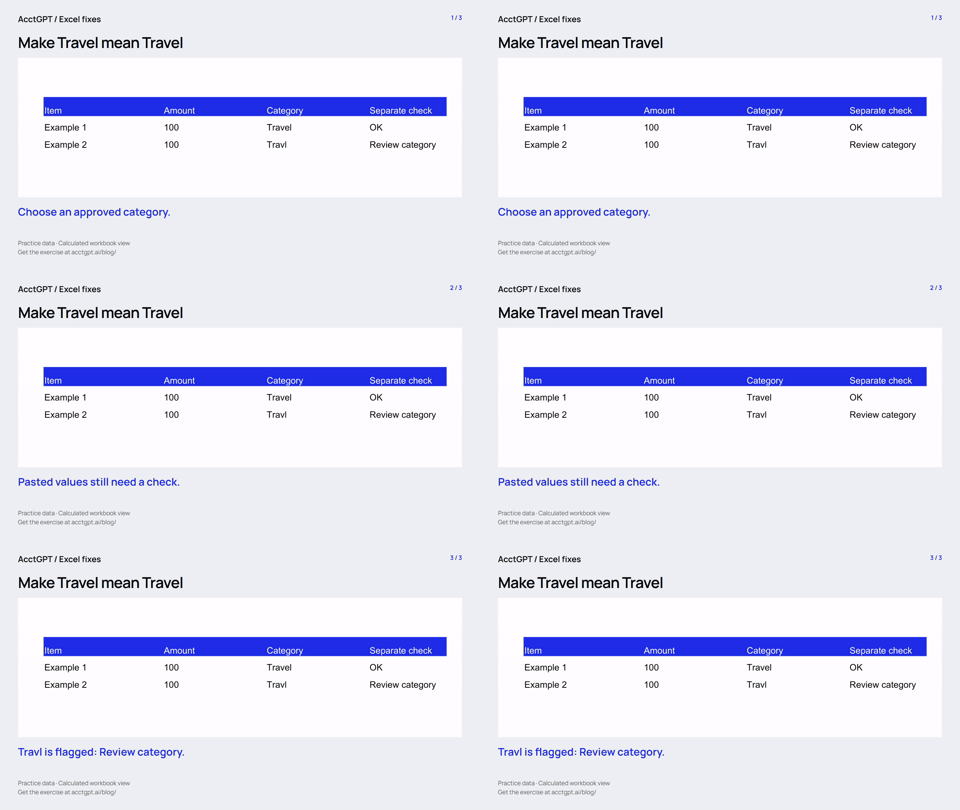
Read the animation
- Choose an approved category.
- Pasted values still need a check.
- Travl is flagged: Review category.
Calculated practice values, shown as a short visual explanation. No narration or recording of Excel menu actions.

Try it on a small example
Use the synthetic exercise first, check its expected answers, then adapt a copy for your own work.
Free files, no signup. Separate from the invitation-only $5 reporting kit.
Compatibility and example checks
The named-range list and COUNTIF check work in Excel 2016 and later. Capture creation and paste behavior in the actual desktop version used for the article.
The workbook’s formulas and source-edit/PivotTable refresh were checked with LibreOffice 26.8. Native Microsoft Excel editing, menu actions and Power Query execution are not yet verified for this release. The guide links to Microsoft’s instructions. The animations illustrate calculated examples rather than recording Excel actions.